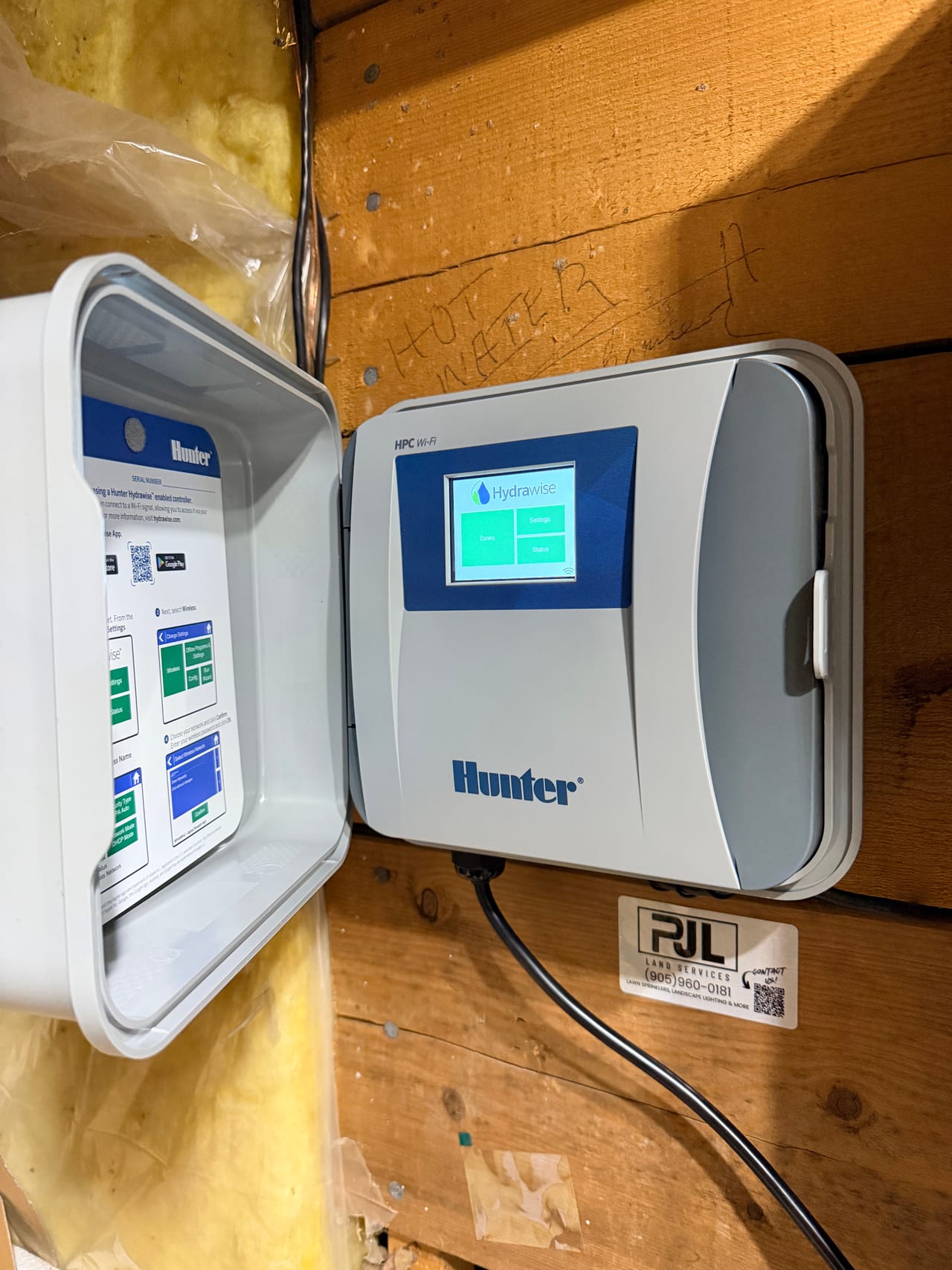
You switched internet providers, replaced your router, or changed your Wi-Fi password — and now your Hydrawise controller shows offline in the app. Nothing is broken. The controller is simply still looking for a network that no longer exists, and it won't update itself. Here's how to point it at the new one, for every Hunter Hydrawise controller model.
How do I connect my Hydrawise controller to a new Wi-Fi network?
Direct answer: On the controller's touchscreen, go to Settings → Wireless, select your new network from the list, and enter the new password. The controller does not update automatically when your network changes — you have to re-enter the credentials at the controller itself.
Two reassurances before you start. First, your zones, schedules, and settings are safe — they live in your Hydrawise account in the cloud, and everything syncs back the moment the controller reconnects. Second, your lawn hasn't gone dry in the meantime: an offline controller keeps watering on the last schedule stored in its memory. What you've lost temporarily is app control and weather-based skips.
Step-by-step for HC, Pro-HC, HPC, and HCC controllers
These four models share the same touchscreen interface:
- On the controller's Home screen, tap Settings, then Wireless.
- The controller scans and lists nearby networks. Select your new network name. While you're here, note the signal strength reading — Hunter recommends 75 or higher for a stable connection. If your new router landed in a different spot in the house than the old one, the signal at the controller may have changed too.
- Enter your Wi-Fi password on the on-screen keyboard and press OK. Passwords are case-sensitive, and this is the single most common failure point — enter it slowly.
- Give it two to three minutes. The controller connects, reaches the Hydrawise server, and syncs your schedule down from the cloud. Confirm in the app that the controller shows online.
If your network doesn't appear in the list at all, see the router section below — it's almost always a 2.4 GHz issue.
Step-by-step for the X2 controller with WAND module
The X2 is Hunter's dial controller; the WAND module adds the Wi-Fi. There's no touchscreen, so reconnection runs through the Hydrawise app: open your controller settings in the app and run the Wi-Fi setup wizard, which walks you through joining the new network. If the module won't cooperate, power cycle the controller first (unplug, wait 10 seconds, plug back in), then re-run the wizard. As a last resort, hold the button on the WAND module for 5 seconds until "Fdr" shows on the controller's display, release when the LED turns solid amber and the screen reads "done," then run the setup wizard again from scratch.
Why doesn't my new network show up in the list?
Direct answer: Hydrawise controllers connect on 2.4 GHz Wi-Fi only — they cannot see 5 GHz networks. Many new routers broadcast both bands under a single network name, which can prevent the controller from connecting. Fixes: enable the 2.4 GHz band, split the bands into separate network names, or lock the 2.4 GHz channel.
New routers are the usual culprit here, and there are three specific settings to check:
Band steering / combined SSID. If your router merges 2.4 GHz and 5 GHz under one name, the controller may repeatedly get pushed toward the band it can't use. Splitting them — give the 2.4 GHz band its own name like "HomeWiFi-2.4" — is the most reliable fix, and you only need to do it once.
Auto channel selection. Some routers set to "auto" drift onto 2.4 GHz channels the controller can't see. Locking the channel (channel 6 is a common recommendation) with 20/40 bandwidth keeps the controller happy permanently.
Security and filtering. New routers sometimes ship with parental controls or device filtering enabled. If the controller joins the network but never reaches the Hydrawise server, check that nothing is filtering its traffic. On touchscreen models, the built-in network test (under network settings) shows exactly where the connection chain breaks — router, DNS, internet, or Hydrawise server.
Mesh systems. Mesh Wi-Fi (Eero, Google Wifi, Deco) generally works fine with Hydrawise, and a mesh node in or near the garage often improves the connection over a single old router. If the controller struggles on mesh, the band-steering fix above usually resolves it.
Do I lose my schedules when I change networks?
Direct answer: No. Your zones, schedules, zone photos, and settings are stored in your Hydrawise account in the cloud, not on the controller. Reconnecting to a new network — or even factory resetting the controller — restores everything automatically once it's back online.
The only thing that lives locally on the controller is the last synced copy of the schedule, which is what keeps your lawn watered during the outage. Once reconnected, the controller pulls the authoritative version from your account.
What if it still won't connect?
Run through it in order: confirm the controller has power, power cycle it (unplug until the screen goes dark, plug back in), restart the router, re-enter the Wi-Fi credentials, and check signal strength. If it holds "connected" on the wireless screen but stays offline in the app, work through the router settings above. Our Hydrawise offline troubleshooting guide covers the full diagnostic sequence, and if you just moved into a home with an inherited system, start with our new-homeowner Hydrawise setup guide — the controller may still be on the previous owner's account.
Still stuck after all of that? The remaining causes are usually signal strength at the mounting location or a failing Wi-Fi board — both of which we diagnose on-site as Hydrawise-certified installers.
One more thing Ontario sprinkler owners should know: PJL offers seasonal services as standalone visits — you don't need to have installed with us or hold any contract. If you're new to irrigation ownership, the one appointment that can't be skipped is the fall closing: we blow out your lines with compressed air before the ground freezes, protecting your system through the winter.
Book a fall closing