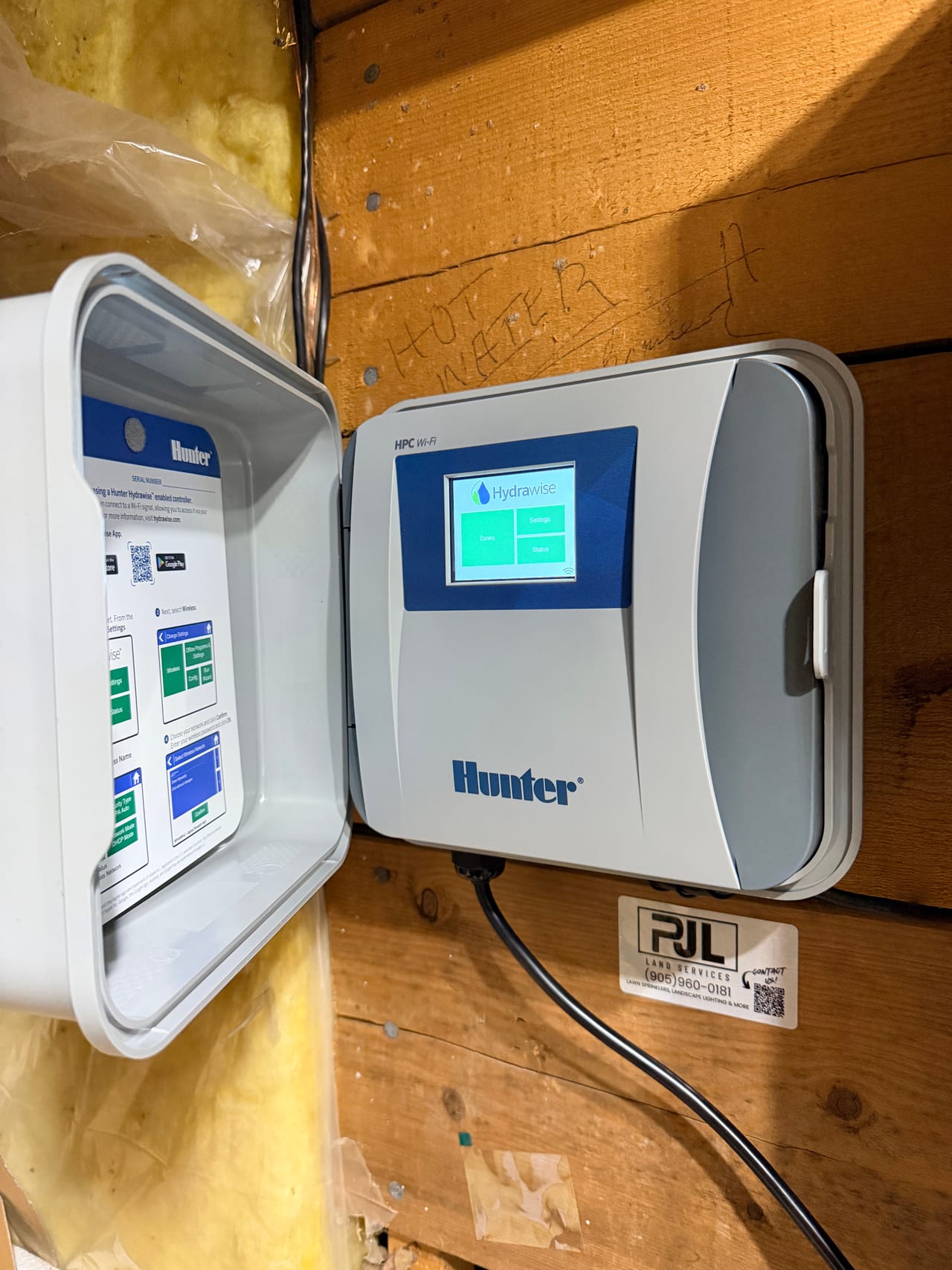
Your Hydrawise app just told you your controller is offline. Before you assume something's broken, here's the good news: in our service calls across York Region, the most common cause is the simplest one — the controller lost power. Someone unplugged it in the garage, a breaker tripped, or a GFCI outlet popped. Check that first. This guide covers every cause we see in the field and the exact steps to get each Hunter Hydrawise controller model back online.
What happens when a Hydrawise controller goes offline?
Direct answer: An offline Hydrawise controller keeps watering. It runs the last schedule synced to its internal memory. What you lose is remote app control, watering reports, and weather-based adjustments like rain skips — those only work while the controller is connected to the internet.
Hydrawise typically detects a lost connection within about 7 minutes, and if the controller stays offline for more than 24 hours, Hunter emails you a notification. That email is usually how homeowners first find out — often days or weeks after the connection actually dropped.
One important caveat while offline: your controller will water on its stored schedule even if it's pouring rain, because predictive weather skips need an internet connection. In a wet Ontario June, that's wasted water and a soggy lawn.
Why did my Hydrawise controller go offline?
Direct answer: The most common causes, in order: the controller lost power (unplugged, tripped breaker, or GFCI), your Wi-Fi network changed (new router, new password, new internet provider), weak Wi-Fi signal reaching the controller, or router settings blocking the connection.
Here's the full list of causes we diagnose in the field:
- The controller lost power. This is the number-one cause we see. Hydrawise controllers are usually mounted in garages or basements, plugged into a wall outlet. Someone unplugs it to charge a tool or run a shop vac and never plugs it back in. Garage outlets are also often on GFCI circuits that trip during storms or humidity swings. If the controller screen is dark, this is your answer. Just moved in? A controller that's dark or running a schedule you didn't set was often unplugged during the move — and it's likely still on the previous owner's account. Our new-homeowner Hydrawise setup guide walks you through taking it over.
- Your Wi-Fi network changed. New internet provider, new router, changed Wi-Fi password, or a renamed network — the controller is still looking for the old network and can't find it. This is the most common cause after power loss, and it's why controllers often go offline right after an internet service upgrade. Our guide to connecting Hydrawise to a new Wi-Fi network covers the reconnection for every controller model.
- Weak Wi-Fi signal. Hydrawise needs a medium-to-strong signal to hold a connection — Hunter recommends a strength reading of 75 or higher on the controller's wireless screen. Garages sit at the far edge of most home networks, behind concrete and ductwork. A controller that connects but keeps dropping offline usually has a signal problem, not a hardware problem.
- Your router is on the wrong band or channel. Hydrawise controllers connect on 2.4 GHz Wi-Fi only — they cannot see 5 GHz networks. If your router broadcasts both bands under one network name, the controller can get confused. Routers set to "auto" channel selection can also drift to 2.4 GHz channels the controller can't see. Locking your router's 2.4 GHz band to a fixed channel (channel 6 is Hunter's common recommendation) with 20/40 bandwidth resolves this.
- Router security settings are blocking it. Parental controls, MAC address filtering, and firewall rules can silently block the controller's traffic to Hunter's servers — the controller shows "connected" to Wi-Fi but can't reach Hydrawise.
- Internet outage or provider issue. If your whole house is offline, so is your controller. It reconnects on its own when service returns — usually. Sometimes it needs a nudge (see the reboot steps below).
- Hunter server maintenance. Rare, but it happens. If your internet works fine and the controller shows connected, check whether other Hydrawise users are reporting issues before touching anything.
Why does my controller say "Connected" but the app shows offline?
Direct answer: A "Connected" message on the controller's wireless screen means it reached your Wi-Fi router — not Hunter's servers. The controller can be joined to your network while a firewall, DNS issue, or router setting blocks it from reaching Hydrawise.
This trips up a lot of homeowners. On HC, Pro-HC, and HPC controllers, run the built-in network test (Settings → Network Status → Test Network on most models). It pings your router, your DNS server, the internet, and the Hydrawise server in sequence, and shows you exactly where the chain breaks. If everything passes except the Hydrawise step, the problem is a router setting or a temporary server issue — not your controller.
How do I get my Hydrawise controller back online?
Direct answer: Check power first — confirm the screen is on and the outlet works. Then power cycle: unplug the controller, wait until the screen is completely dark, and plug it back in. If it still won't connect, reselect your Wi-Fi network and re-enter the password on the controller.
Work through these steps in order. Most controllers come back online at step 1 or 2.
- Confirm the controller has power. Is the screen on? If it's dark, check the plug, the outlet (test it with a phone charger), the GFCI reset button, and the breaker panel. If your controller was unplugged, plugging it back in usually restores the connection within a few minutes with no further action needed.
- Power cycle the controller. Hunter's recommended first fix for every Hydrawise model. Unplug the controller and wait until the screen is completely blank. Plug it back in and give it two to three minutes to reconnect.
- Restart your router. Unplug the router for 15–20 seconds, plug it back in, and wait two to three minutes for it to fully restart. If you have a Wi-Fi extender serving the controller, restart that too.
- Check the Wi-Fi connection on the controller. If your network name or password changed, the controller needs the new credentials. See the model-specific steps below.
- Check signal strength. On touchscreen models, go to Settings → Wireless and select your network — the controller displays signal strength. If it reads below 75, the controller is too far from the router. A Wi-Fi extender in or near the garage is the fix.
- Reboot from the menu, then factory reset as a last resort. Touchscreen models have Settings → Config → Reboot Controller. If nothing else works, a factory reset (Settings → Config → Factory Default) wipes the controller's local settings — but don't panic: your zones, schedules, and configuration are stored in your Hydrawise account in the cloud, and everything syncs back automatically once the controller reconnects.
How do I reconnect each Hydrawise controller model?
Direct answer: HC, Pro-HC, HPC, and HCC controllers reconnect through their touchscreen: Settings → Wireless, select your network, enter the password. The X2 with WAND module reconnects through the Hydrawise app's setup wizard after a power cycle or module reset.
Hunter HC (indoor touchscreen controller)
From the Home screen, tap Settings → Wireless. Select your network from the list and enter your password, then tap OK. If your network isn't listed, the controller is likely out of range. Note: older HC units on early firmware can take several hours to flag themselves offline in the app, so the outage may have started well before you got the notification.
Hunter Pro-HC and HPC (the controller PJL installs)
Same touchscreen flow: Settings → Wireless, select your network, confirm, enter the password, press OK. The HPC is the Hydrawise faceplate installed into a Pro-C cabinet — if the screen is dark, also check that the ribbon cable inside the cabinet is seated, since it can be disturbed if the facepack was opened. These models also have the Test Network diagnostic under network settings, which pinpoints exactly where the connection fails.
Hunter HCC (large-zone-count touchscreen controller)
Identical touchscreen process to the Pro-HC. The HCC is typically hardwired rather than plugged into an outlet, so "check the plug" becomes "check the breaker." If a power cycle is needed on a hardwired unit, the internal ribbon cable can be disconnected to cut power — but if you're not comfortable opening the cabinet, that's a service call.
Hunter X2 with WAND Wi-Fi module
The X2 is a dial controller; the WAND module clips in to add Hydrawise. Power cycle first: unplug, wait 10 seconds, plug back in. If it still won't connect, reset the module: press and hold the button on the WAND for 5 seconds — "Fdr" appears on the controller's LCD and the module LED turns off. Release when the LED turns solid amber and the screen shows "done." Then open the Hydrawise app and run the Wi-Fi setup wizard from your controller settings to reconnect. Important: with the WAND removed or reset, the X2 falls back to whatever is programmed on its dial — worth knowing if the app has been managing your schedule for years and the dial program is stale.
Will my lawn survive while the controller is offline?
Direct answer: Yes — as long as the controller has power, it waters on the last schedule it downloaded. The risk isn't missed watering; it's dumb watering. Offline controllers ignore rain and temperature, so they'll water in a thunderstorm or skip nothing during a heat wave.
If your controller has been offline for weeks (it happens — the notification email lands in spam), it's been watering on autopilot with whatever schedule it had. After you reconnect, open the app and confirm your schedule synced and your rain sensor or weather triggers are active again.
How do I stop this from happening again?
Three habits prevent nearly every offline call we get:
Label the plug. A strip of tape on the controller's plug that says "SPRINKLER SYSTEM — DO NOT UNPLUG" costs nothing and prevents the single most common cause. If the outlet is shared and contested, a dedicated outlet is worth the electrician visit.
Update the controller when your Wi-Fi changes. New router or new password? Add "reconnect the sprinkler controller" to the same checklist as the TV and the thermostat. Five minutes at the touchscreen saves a mystery three weeks later.
Check the app monthly during watering season. Open Hydrawise once a month. If it says offline, you'll catch it in days, not weeks — and your watering reports stay unbroken.
When should you call a pro?
If you've confirmed power, power cycled, restarted the router, re-entered your Wi-Fi credentials, and the controller still won't hold a connection — the problem is usually signal strength at the mounting location, a router configuration issue, or (rarely) a failing Wi-Fi board in the controller. As Hydrawise-certified installers, we diagnose and fix all of it, and we can also assess whether an extender or a controller relocation is the cleaner long-term fix.
Thinking about a smart-controller upgrade?
If you don't have Hydrawise yet — or you're fighting an older timer that keeps dropping its schedule — a Hunter Hydrawise controller lets you set and skip watering from your phone, with weather-aware watering that pays for itself in saved water. It reuses your existing valve wiring and heads, so it's a swap at the controller, not a rebuild.
See the Hydrawise upgrade